Codex Slides Browser
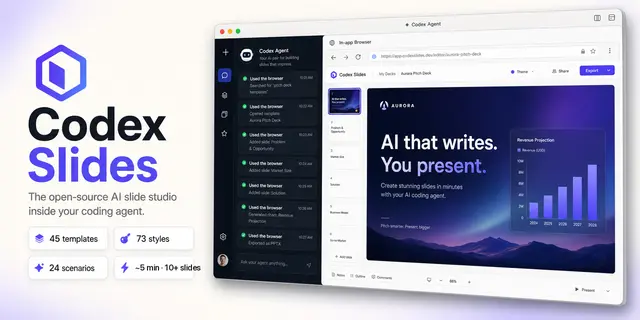
Compatibility entry point for opening and operating Codex Slides in Codex's in-editor...
Install
npx skills add nexu-io/codex-slides --skill codex-slides-browser -g -a claude-code -y- Repository
- nexu-io/codex-slides966
- Category
- Design
- Updated
- 4mo ago
- License
- MIT
- Context cost
- Lightabout 594 tokens
- Runs scripts
- No, instructions only
What it does
Compatibility entry point for opening and operating Codex Slides in Codex's in-editor Browser, including scenario selection, Design Files, brand systems, decks, and Play mode. Use when the user asks to open, launch, preview, view, play, inspect, or directly manipulate Codex Slides or a deck without leaving Codex.
Codex Slides Browser
This specialized skill remains for compatibility. The canonical
codex-slides sibling skill owns the full workflow and portable CLI.
- Call
open_codex_slideswhen the MCP tool is available. Otherwise runnode ../codex-slides/scripts/codex-slides.mjs open --json '<input>'from this skill directory. PassprojectIdwhen the user named a deck; otherwise omit it for the create workspace. Useview:"scenarios"for the 24-workflow catalog,view:"design-files"plusprojectIdand optionalfilePathfor project files, orview:"brand-system"plusprojectIdfor the brand editor. - Navigate the returned resource link in the Codex in-editor Browser. Do not
stop after printing the URL and do not ask the user to open it manually.
Follow
browserHandoff.urlexactly so slide, panel, version, mode, checkpoint, conversation, and run focus are preserved. - For a new deck, always open and verify the home/create screen before any
research, outline, or rendering call. Submit the topic in that UI so it
creates a durable project and opens the guided workspace. Use
start_project/ CLIstart-projectonly if UI submission needs a deterministic fallback, then navigate its project resource immediately. - Keep the Browser visible and operate the checkpoints in order: clarify, outline review, inspiration/style selection, render, deck review. Do not run the entire workflow invisibly in the Codex conversation.
- Use direct MCP tools or the canonical skill CLI for deterministic recovery and mutations, then reload or inspect the Browser result.
- Verify the visible outcome before reporting completion.
Long Deck Agent, outline, and render operations can continue after navigation.
Use start_project_run, retain its runId, and use get_project_run,
wait_project_run, or cancel_project_run without closing the Browser.