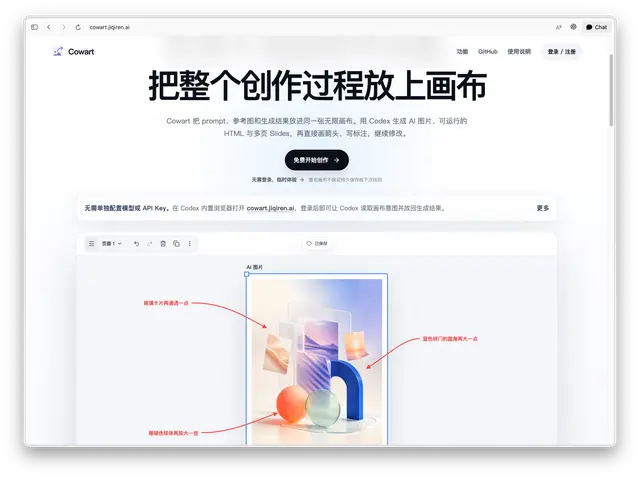
Cowart Image Edit
Generate revised AI images from user-supplied Cowart annotation screenshots and place...
Install
npx skills add zhongerxin/Cowart --skill cowart-image-edit -g -a claude-code -y- Repository
- zhongerxin/Cowart6k
- Category
- Engineering
- Updated
- 27d ago
- License
- MIT
- Context cost
- Mediumabout 2,417 tokens
- Runs scripts
- No, instructions only
What it does
Generate revised AI images from user-supplied Cowart annotation screenshots and place each result beside its original without replacing, moving, hiding, or deleting existing images or annotations.
Cowart Image Edit
Use this skill to turn user-provided Cowart 批注 screenshots into revised AI-generated bitmaps placed next to the corresponding original images.
Preconditions
Ensure the cowart_mcp tools required by this workflow are available. Do not call render_cowart_canvas_widget as a routine prerequisite: annotation requests sent from the Cowart widget already have an open canvas, and the existing widget synchronizes inserted results from MCP-backed storage. If the user separately asks to open, reopen, or explicitly refresh the canvas, handle that request once with the canvas-opening workflow.
Cowart state is read and written through Cowart MCP tools, not through a localhost browser service.
The user is responsible for providing the relevant screenshot(s). Do not auto-capture the current canvas and do not scan the whole canvas to infer edit requests; a canvas may contain many images with different annotations.
Workflow
For a follow-up from Cowart's sidebar canvas, use the exact projectDir and canvasDir in the Cowart context/message for all Cowart tools. These paths can differ from the conversation working directory. In ordinary project conversations, keep using the active user project as before.
-
Read the user-provided screenshot(s).
Treat each screenshot as the authoritative edit brief for one output image unless the user says multiple screenshots belong to the same image.
If the user provides multiple screenshots, process them independently and keep their generated outputs separate. Do not merge annotations across screenshots unless explicitly requested.
-
Extract the edit requirements from each screenshot.
Read visible 批注 labels, arrows, and nearby edit notes from the screenshot itself. Use the arrow tip or marked region to understand where each note applies.
Ignore editor chrome such as toolbars, blue selection outlines, resize handles, cursor icons, and unrelated neighboring images.